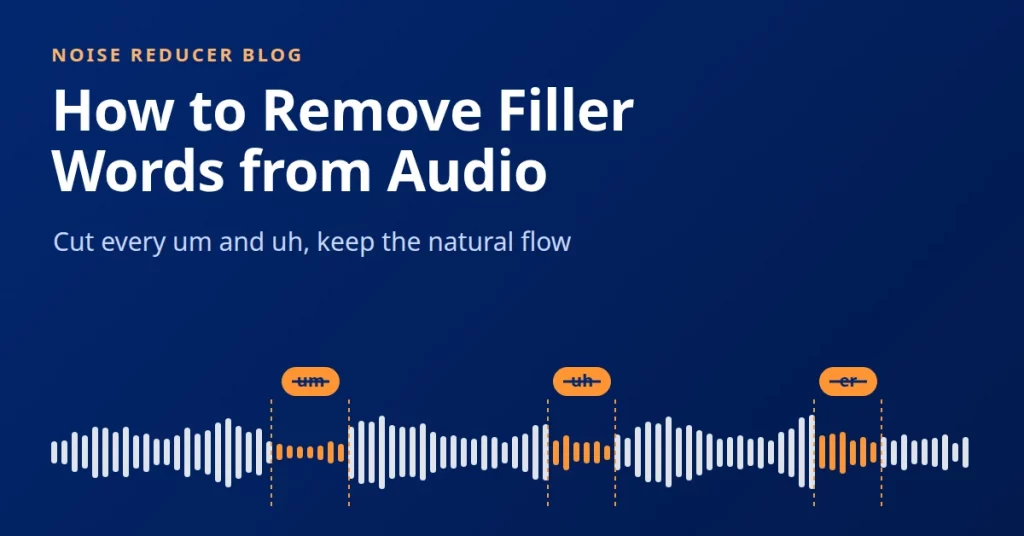
Everyone says um and uh. In a conversation nobody notices, but in a recording these little sounds stand out, and a podcast, lesson or voice-over full of ums sounds less confident than it should. The good news is that you can remove filler words from audio after you record, without starting again.
This guide explains what filler words are, when you should cut them, and three ways to do it, from careful manual editing to an AI tool that does the first pass in under a minute.
What Are Filler Words?
Filler words are the sounds and words people use while they think. The most common ones are filled pauses: um, uh, er, erm and hmm. They tell the listener that the speaker has not finished yet, which helps in a live conversation but adds nothing to a recording.
There is a second group: words such as “like”, “you know”, “so” and “basically”. These are real words that sometimes work as fillers. Because they can also carry meaning, cutting them changes the sentence, so they need a human decision rather than an automatic cut.
Why Remove Filler Words from Your Recordings?
Fillers stand out much more in a recording than in person. Without the speaker’s face and gestures, every hesitation comes through clearly, and a few dozen of them in a 20-minute episode can make even an expert sound unsure.
Cutting them makes speech tighter and easier to follow. The recording gets shorter without losing a single idea, and the message lands better. That matters for podcasts, online courses, product demos and anything people listen to while doing something else.
Should You Remove Every Filler Word?
Not always. A few hesitations keep a relaxed interview sounding human, and cutting every single one can make a conversation feel scripted. A good rule is to remove the fillers that break up a sentence and keep the ones that sit naturally at the start of a thought.
For scripted content such as voice-overs, ads and course lessons, you can usually remove almost all of them. Whatever you choose, the important thing is to stay in control of what gets cut.
Three Ways to Remove Filler Words from Audio
1. Edit Them Out by Hand
You can open the file in a free audio editor such as Audacity, play it back, find each um in the waveform, select it and delete it. Add a short crossfade at every cut, or the joins will click.
This gives you full control, but it is slow. A 20-minute interview can easily hold dozens of fillers, and finding each one means listening to the whole recording, often more than once.
2. Use a Transcript-Based Editor
Some editing apps transcribe your recording and let you delete words from the text, and the audio is cut to match. This works well when you are editing a full video or podcast project anyway.
If all you want is the same audio without the ums, it is more tool than you need. You usually have to create a project, wait for the transcript and learn a new editor before you can remove a single filler.
3. Use an AI Filler Word Remover
A dedicated filler word remover does one job well. You upload the audio, the AI finds the hesitation sounds and cuts them, and you check the result. Noise Reducer’s Remove Filler Words works this way. It listens for the sound of a hesitation instead of reading a transcript, joins every cut with a short crossfade, and shows you each cut so you can change it before you download.
How to Remove Filler Words with Noise Reducer
Step 1: Upload Your Audio
Open Remove Filler Words and upload an MP3, WAV, M4A, AAC, FLAC or OGG file, or record right on the page. Each file can be up to two hours long.
Step 2: Let the AI Find the Fillers
The AI detects every um, uh, er and erm and cuts it out. Most files are ready in under a minute, and you can listen to the cleaned audio straight away.
Step 3: Check and Edit the Cuts
Each cut is listed with its start and end time. Listen to the original around any cut with one click, move its edges to the hundredth of a second, delete a cut to keep that sound, or add a cut the AI missed. When you apply your changes, the audio is cut again in seconds.
Step 4: Download Clean Audio
Download the result as an MP3 with the fillers removed. You can try the tool with your free minutes and listen to the result. Downloading uses minutes from your balance, the same as noise reduction, and Unlimited plans include it.
Tips for Natural-Sounding Results
Reduce the Noise First
Fillers are easiest to find in clean speech. If your recording has background noise, run it through Reduce Noise first, then choose Remove filler words in its player.
Start from the Original Recording
Use the original file rather than a heavily compressed copy whenever you can. The cleaner the audio, the more accurate the cuts.
Skim the Cuts Before You Download
Listen around a few cuts, especially where the speech is fast. A wrong cut takes one click to delete, and a missed filler takes a moment to add.
Pause Instead of Saying Um Next Time
Fillers appear when the mouth gets ahead of the mind. A short silent pause sounds more confident than an um, and it is much easier to edit. A few notes prepared before you record help too.
What a Filler Word Remover Will Not Do
It removes hesitation sounds, not words. “Like”, “you know” and similar words stay in the audio, because they can be real words in a sentence. Breaths and natural pauses stay too.
It works on audio files. Video files are not supported yet, so to clean up the sound of a video, use Reduce Noise. Because it listens for the sound of a hesitation rather than for words, it is not limited to English. If it misses a filler or cuts too much in another language, adjust the list of cuts before you download.
Frequently Asked Questions
Can I Remove Filler Words for Free?
You can try Remove Filler Words with your free minutes and listen to the full result. Downloading the cleaned file uses minutes from your balance.
Will the Audio Sound Choppy After the Fillers Are Cut?
No. Each cut is joined with a short crossfade, so the words around it continue smoothly.
Can I Keep Some of the Fillers?
Yes. Every cut is listed, and you can delete any cut to keep that sound before you apply your changes.
Conclusion
Filler words are a natural part of speech, but in a recording they get in the way of your message. You can cut them by hand, inside a full editing app, or with a filler word remover that does the first pass for you and leaves the final say to you.
Try Remove Filler Words with your free minutes, check every cut, and download clean audio.

